
Documentation / Vehicles, people and documents
Vehicles
The vehicle register lists every car, van, truck, machine and trailer of your company. Each vehicle has a registration number, a home branch and a status, and its card keeps the data and the history of its branches.
Who can see and change vehicles
In Administration, then Roles, two permissions under IntelliFleet decide this:
- Vehicles lets a user see the register and open a vehicle's card.
- Edit vehicles also lets them add vehicles, change them and manage fleets.
The menu entry IntelliFleet > Vehicles shows only for users with the first permission.
The register
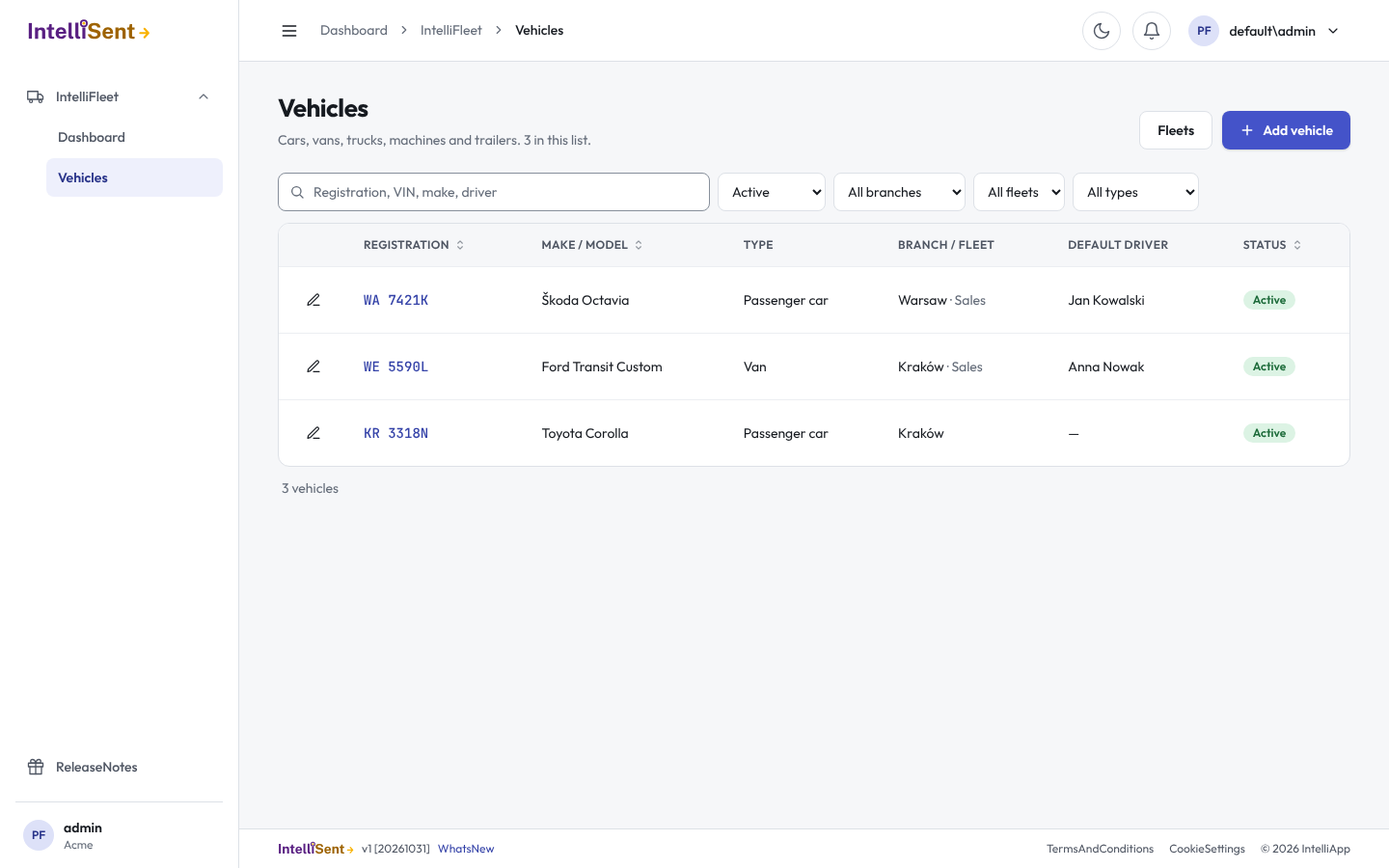
The list shows the Active vehicles first. Search by registration number, VIN, make or driver, and narrow it with the filters for status, branch (a branch also shows the vehicles of the branches under it), fleet and type. Click a column title to sort. Click a registration number to open the vehicle's card.
Add a vehicle
- Click Add vehicle.
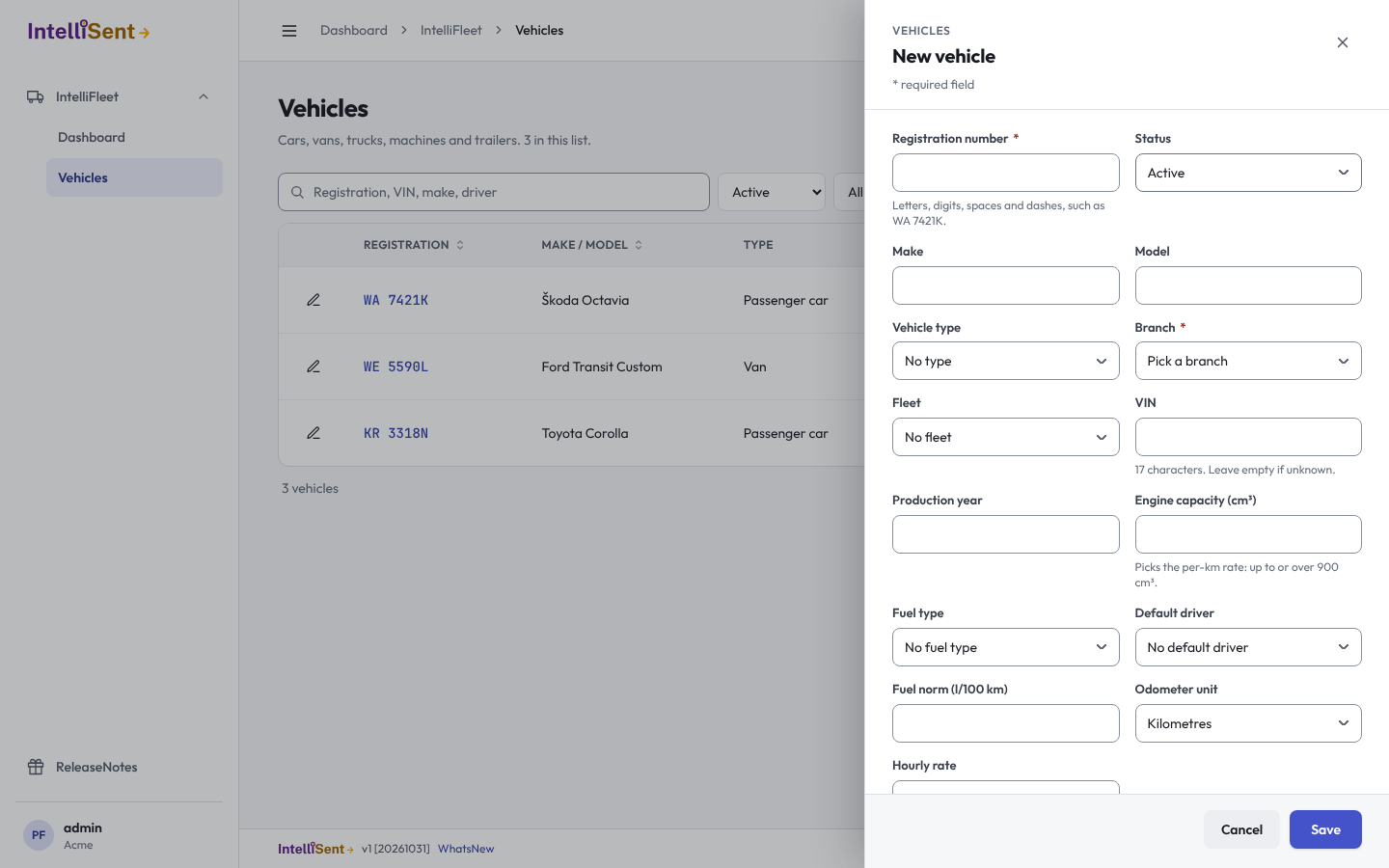
- Fill in the Registration number and pick the Branch. Everything else can wait: make, model, type, fleet, VIN, year, engine capacity, fuel, default driver, fuel norm, odometer unit and notes.
- Click Save.
What the form checks:
- The registration number may have letters, digits, spaces and dashes (2 to 20 characters). It is saved in capitals with single spaces, so
wa 7421kbecomesWA 7421K. Two vehicles of your company cannot have the same number, whatever its case. - The VIN has 17 letters and digits, without I, O and Q. Leave it empty if you do not know it. Two vehicles cannot have the same VIN either.
- Your edition allows a number of Active vehicles. When you are at the limit, adding or reactivating a vehicle is refused and the message tells you how many are allowed. Set a vehicle you no longer use to Inactive, Sold or Scrapped to free a place.
Fill the form from the registration certificate
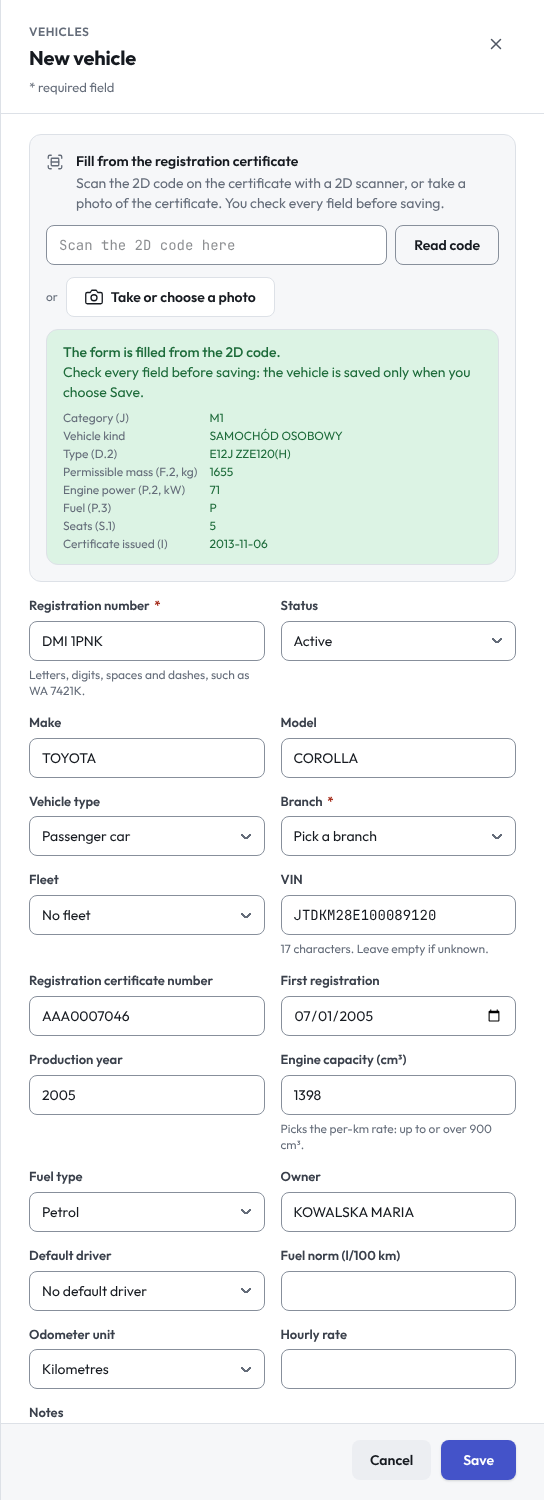
At the top of the vehicle form, Fill from the registration certificate reads a Polish registration certificate (dowód rejestracyjny) so you do not type it in. It fills the registration number, make, model, VIN, production year, engine capacity, vehicle type, fuel, the certificate's number, the owner and the first registration date. Nothing is saved until you check the form and click Save.
- With a 2D scanner: click in the field Scan the 2D code here and scan the square code on the certificate. Most scanners press Enter at the end; otherwise click Read code. Reading the code is free.
- With a photo: click Take or choose a photo. On a phone this opens the camera; on a computer pick a photo or scan of the certificate. The 2D code in the photo is read first, which is free.
- When the photo has no readable code, the form offers Read the photo with AI. AI then reads the printed fields. Each AI read counts as one AI call in Usage and limits, and the photo is sent to the AI provider (Google Gemini) for that read only and is not stored. Check AI-read fields with particular care.
A few things to know:
- The certificate's category (J) picks the vehicle type: M1 a passenger car, N a truck, L1e and L2e a moped, other L categories a motorcycle. Trailers and machines keep the type you choose. The fuel code (P.3) picks the fuel type.
- The panel lists what the certificate says beyond the form (category, kind, permissible mass, power, seats), for your check.
- When a vehicle with the same registration number or VIN is already in the register, the panel says so; saving would be refused.
- When your plan's AI calls are used up, AI is switched off, or the AI provider does not answer, the photo is not sent and you fill in the form by hand. Reading the 2D code always works.
- Personal numbers (PESEL, REGON) and addresses on the certificate are never read into IntelliFleet.
The vehicle card
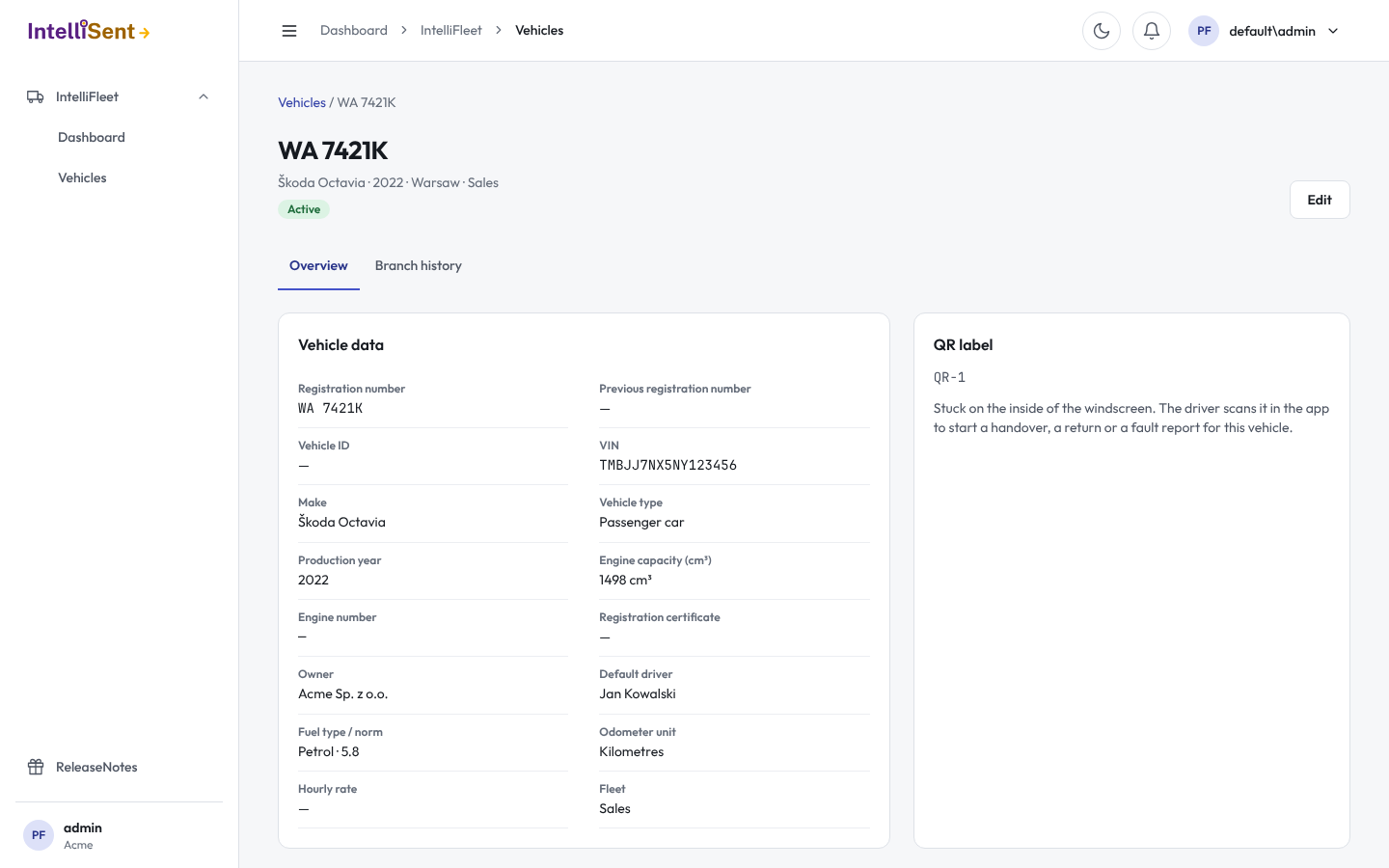
Click a registration number to open the card. Overview shows the vehicle's data and the QR label that drivers scan in the app. Branch history lists where the vehicle has been and since when. Click Edit to change the vehicle in the same form.
Files keeps the vehicle's own files. Drag files onto the card, or click Add files, and IntelliFleet suggests where each goes: a policy to the vehicle's insurance, an invoice to the inbox, photos to a damage. See Drop files on a vehicle or an Employee.
Move a vehicle to another branch
Edit the vehicle and pick another Branch. In Effective from enter the day it moved; empty means today. The day cannot be in the future or before the day the vehicle came to its current branch. The old stretch ends the day before, a new one starts, and costs go into reports under the branch the vehicle was in on their date.
Change the status
| Status | Meaning |
|---|---|
| Active | In use. Counts toward your limit. Can be handed over and can get costs. |
| Inactive | Kept but out of use for now. Cannot be handed over and cannot get new costs. Does not count toward the limit. |
| Sold | Left the company. Costs dated up to the day you marked it Sold can still be added; later ones cannot. |
| Scrapped | Taken off the road for good. Works like Sold. |
In Effective from enter the day the status changed (empty means today). Setting the vehicle to Active again clears that day, and counts toward your limit.
Delete a vehicle
A vehicle added by mistake can be deleted: open its card and click Delete, then confirm. You need the right to edit vehicles. A vehicle that has anything recorded against it (costs, fuel, repairs, handovers, assignments, documents, files and so on) cannot be deleted, so its history and reports stay whole; set its status to Inactive, Sold or Scrapped instead. Once deleted, its registration number and VIN can be used again. Days already counted toward your bill stay counted.
Fleets
A fleet groups vehicles across branches, for example the vans or one customer contract. A vehicle is in at most one fleet. Click Fleets above the register to add, rename or delete fleets. A fleet cannot be deleted while vehicles are in it; take them out first. In the vehicle form, pick the Fleet or No fleet.
Still to come
The register gains its odometer, inspection and insurance columns with the areas that record them. Import from a file, handovers and costs come with their own areas.
Many vehicles at once: see Import vehicles from Excel or CSV.