Documentation / Vehicles, people and documents
Documents, calendar and notes
This area keeps the paperwork of your fleet: Documents with expiry dates (registration certificates, licences, permits, contracts), a Calendar of dated events, and free-text Notes. Find it under IntelliFleet > Documents and calendar, and on the Documents tab of a vehicle's card.
Who can see and change them
In Administration, then Roles, two permissions under IntelliFleet decide this:
- Documents, calendar and notes lets a user see the lists.
- Edit documents, calendar and notes also lets them add, change and delete, and add document types and event categories.
Users see only the documents and events of vehicles and employees in the branches they have access to. Documents that belong to nobody (the company) are visible to everyone with the permission, unless the Branch or Fleet filter in the header is set.
Documents
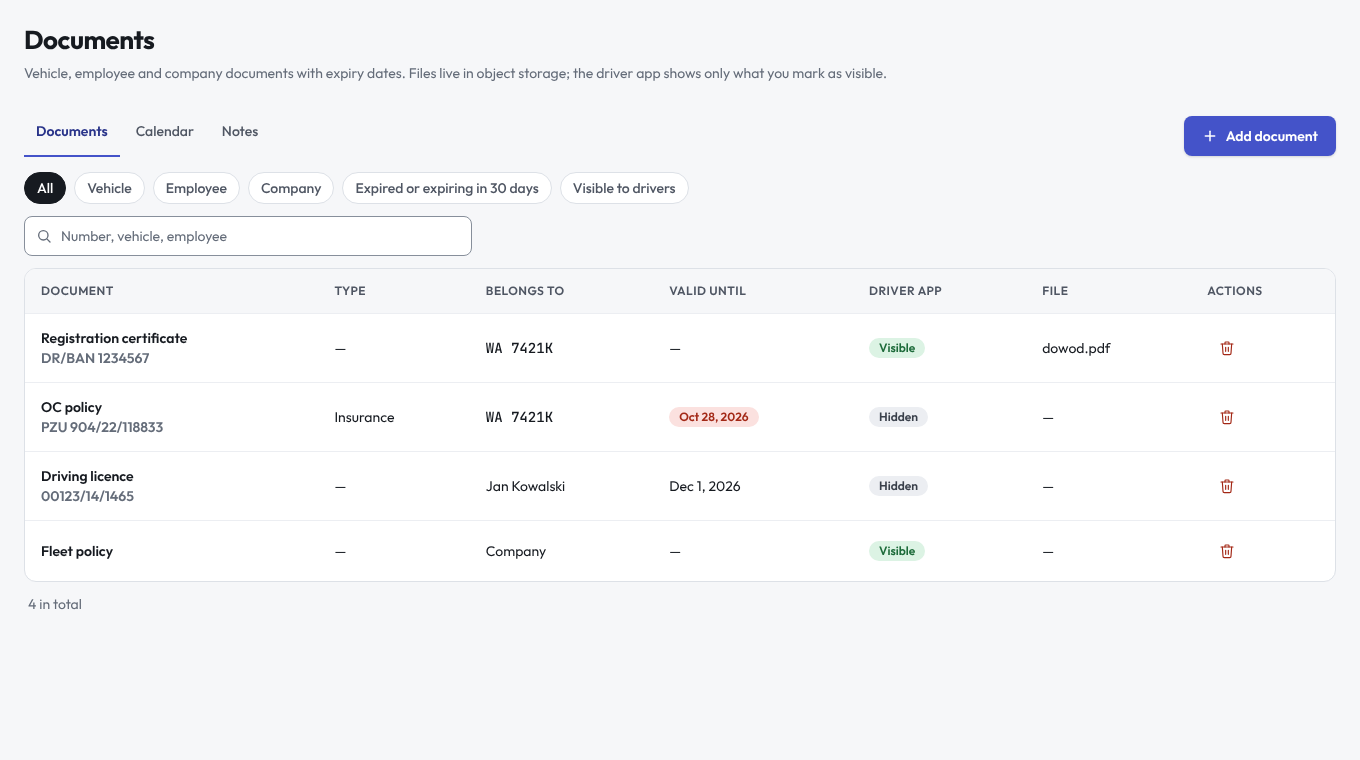
Click Add document and enter a name or pick a type (one of the two is needed), the number, the document date, Valid until, and who it belongs to: a vehicle, an employee, or neither (a company document). Add type next to Type adds a new document type and picks it. The filters show documents of vehicles, employees or the company, those expired or expiring in 30 days, and those visible to drivers.
- Valid until cannot be before the document date. Leave it empty when the document does not expire.
- Due at odometer reminds when the vehicle gets close to a reading. It needs a vehicle.
- Show in the driver app puts the document under My car for the driver who holds the vehicle, or for the employee the document belongs to.
Files
Save the document first, then add its files in the editor, below the form (scans, photos, PDF). Files go through the Fleet file store, so who can open them follows the permissions above.
Reminders and renewal
A document with a vehicle or an employee shows in Reminders when its expiry date comes inside the reminder window, and when it is overdue. When you save a newer document of the same type for the same vehicle or employee, with a later expiry date, the earlier one is treated as renewed and its reminder closes. Company documents do not create reminders.
Calendar
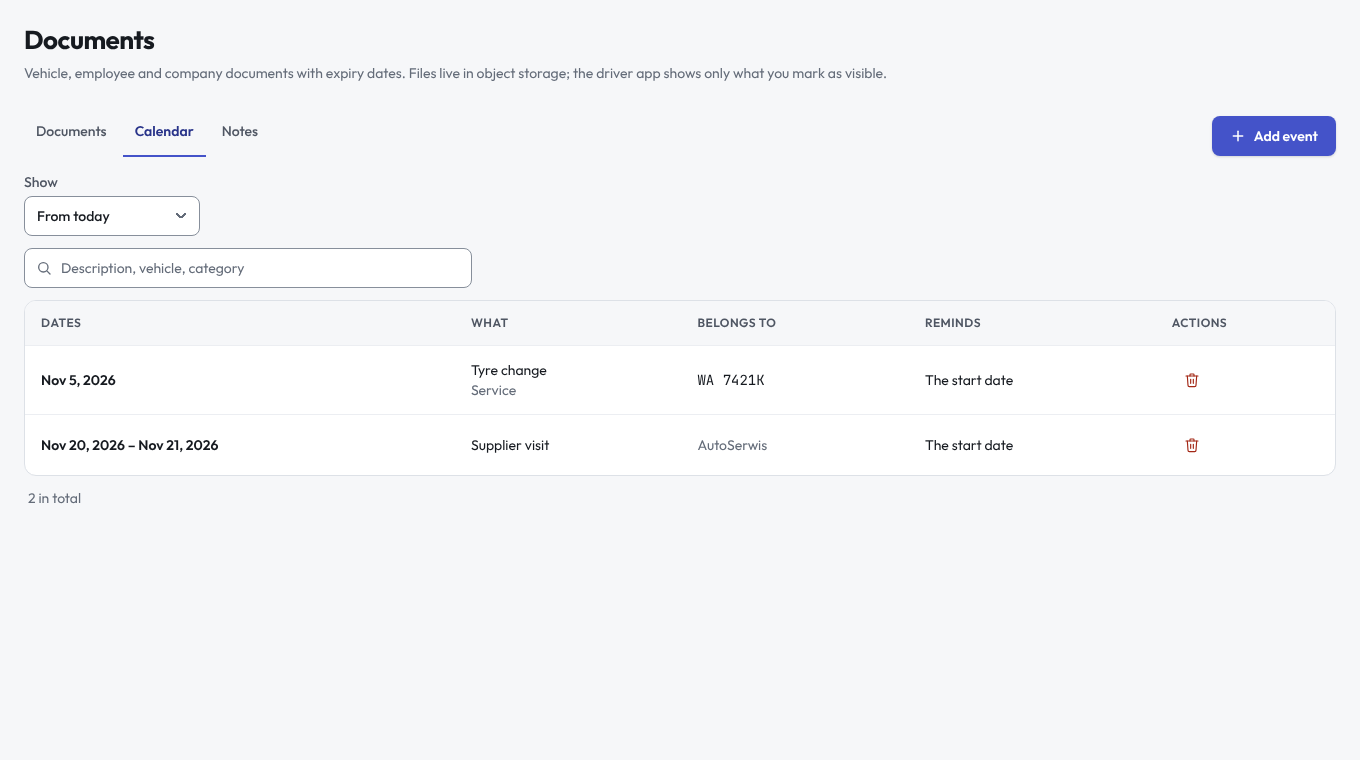
The Calendar tab lists events by date: From today, This month or All events. Click Add event and enter the start, the end (empty for a one-day event), a category, a description, and optionally a vehicle, an employee and a counterparty. Choose whether to be reminded on the start date or the end date. An event with a vehicle or an employee shows in Reminders from its date until it is over.
Notes
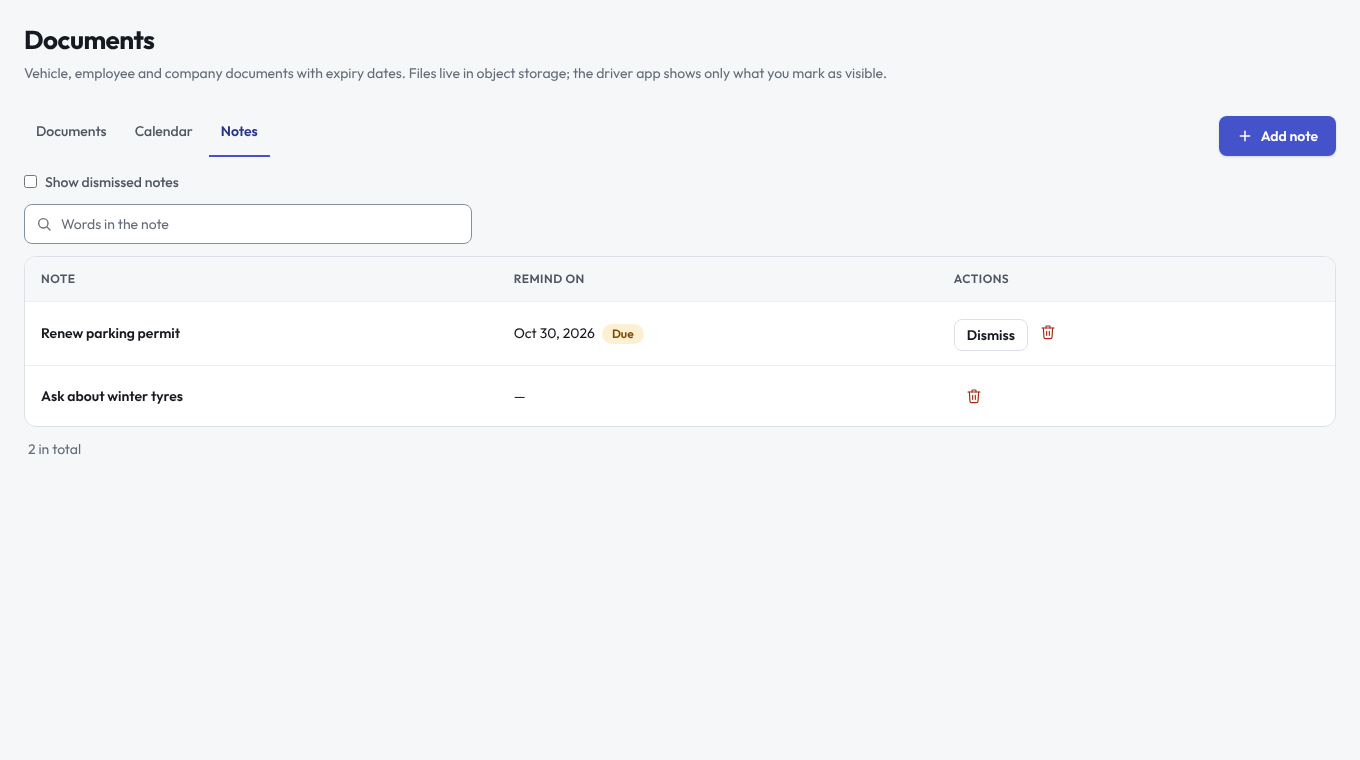
The Notes tab keeps short notes for the whole company. A note can have a reminder date. Dismiss moves a note to the end of the list and hides it unless you choose Show dismissed notes. Notes do not belong to a vehicle or an employee, so they never appear in Reminders; a note whose reminder date has come is only marked as due in the list. The tab is not shown on a vehicle's card.