Documentation / Getting started and setup
Branch access
In a company with several branches, people usually look after the vehicles of their own branch. Branch access decides who sees which vehicles and employees, and the branch filter at the top of every IntelliFleet screen narrows what you see to one branch or one fleet.
Who sees what
- A user whose role has All branches sees every branch, with all its vehicles and employees.
- Anyone else sees only the branches they have been given, and every branch under them. Give someone a region and they see every branch and depot in it.
- A user who has been given no branch sees no vehicles.
- Employees without a home branch are seen by everyone.
The rule applies everywhere in IntelliFleet: lists, a vehicle's card, the dashboard and later the reminders and reports. A vehicle of another branch is simply not there for that user. Reminder e-mails and other work IntelliFleet does on its own are not limited.
The permissions
In Administration, then Roles, two permissions under IntelliFleet decide this:
- All branches lets users with the role see every branch. Give it to roles such as the fleet manager or the company administrator.
- Manage branch access, under Branches, lets a user give branches to people and take them away.
Give someone a branch
- Open IntelliFleet > Branches.
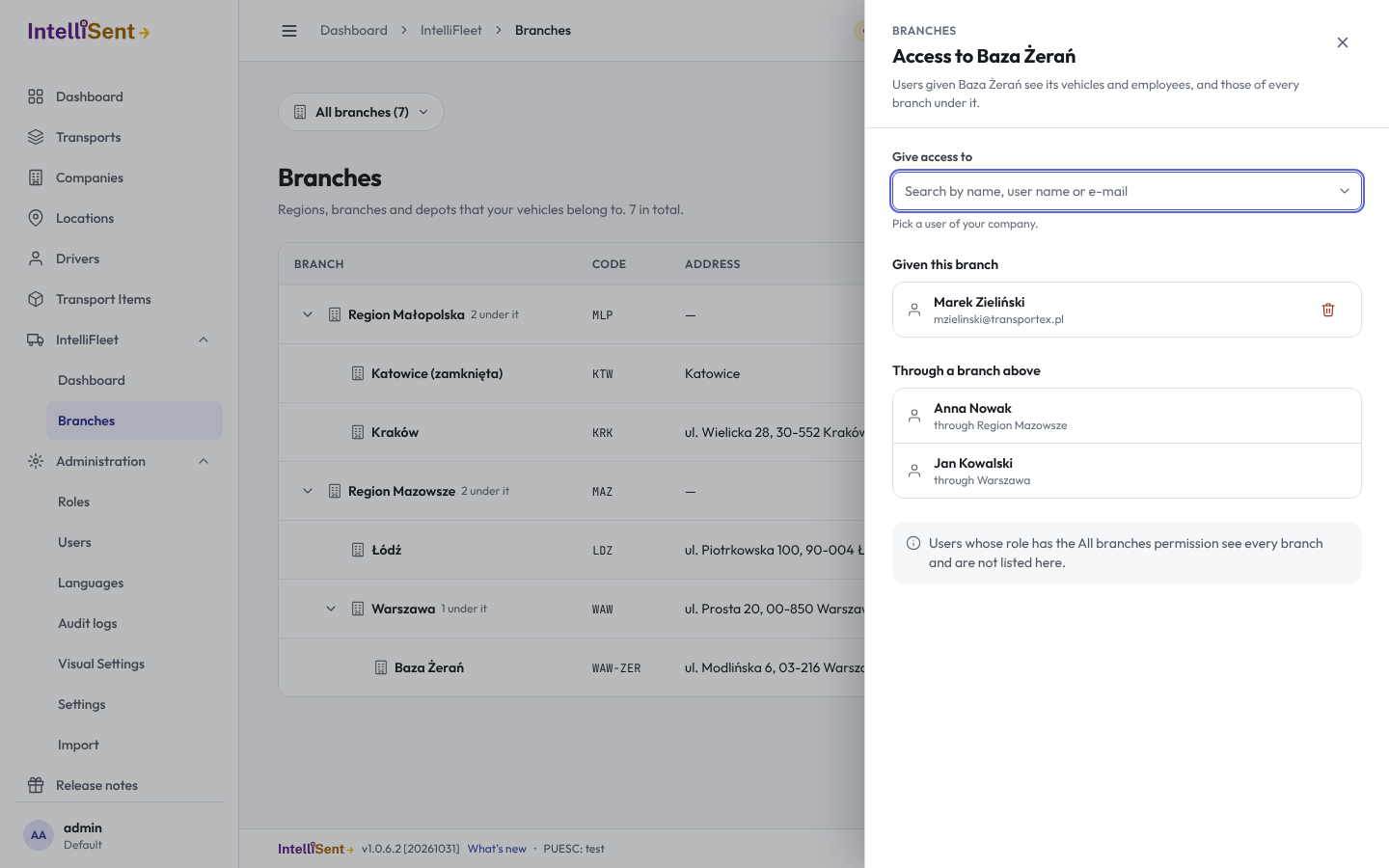
- Click the people icon on the branch's row. A panel shows who sees the branch.
- In Give access to, search for the user by name, user name or e-mail, and pick them.
The user now sees the branch and every branch under it, from their next click on. Giving the same branch twice changes nothing.
The panel has two lists:
- Given this branch: users given exactly this branch.
- Through a branch above: users who see it because they were given a branch higher up the tree, with the name of that branch. To change their access, open the branch named there.
Users with All branches are not listed, since they see every branch anyway.
Take access away
In the same panel, click the bin beside the user in Given this branch. They stop seeing the branch at once, unless they still see it through a branch above.
When a branch is deleted, everyone's access to it goes with it.
If you do not have All branches yourself, you can give and take away only branches you see.
The branch and fleet filter
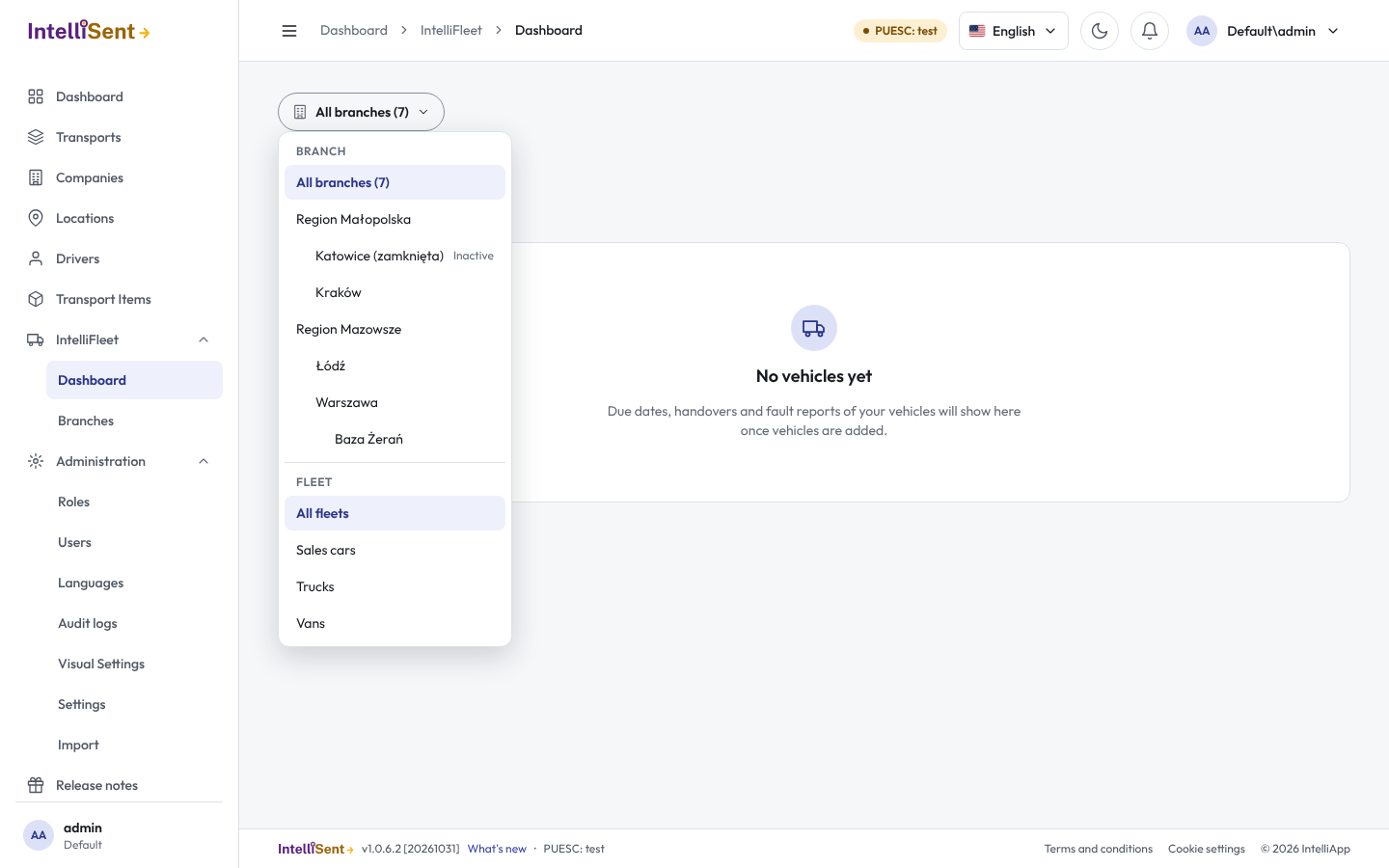
At the top of every IntelliFleet screen, the button with the building shows what you are looking at, for example All branches (7), or My branches (2) when you see only some.
Click it to pick:
- a branch: you see that branch and every branch under it;
- a fleet: you see only the vehicles in that fleet;
- or both together, for example the vans of one region.
Lists and the dashboard follow your pick, and IntelliFleet remembers it on this computer for your next visit. The filter only narrows: it never shows a branch you were not given.