
Documentation / Getting started and setup
Getting started with IntelliFleet
IntelliFleet manages your company's vehicles inside IntelliSent: the vehicle register, employees, handovers, costs and reminders. This page explains how to turn it on and where to find it.
Turn IntelliFleet on for a company
IntelliFleet is part of an edition. A company sees it only when its edition includes it.
- Sign in as the host administrator.
- Open Editions, then edit the company's edition.
- On the Features tab, tick IntelliFleet and save.
Every company on that edition now has IntelliFleet. Untick it to turn it off again; the company's data stays and comes back when you turn it on.
Let people use it
Within a company, people need the IntelliFleet permission.
- Open Administration, then Roles, and edit a role (for example Admin).
- On the Permissions tab, tick IntelliFleet and save.
Users with that role see IntelliFleet once they reload the page or sign in again. The permission can be ticked only where the company's edition includes IntelliFleet.
Tick All branches too for roles that should see the vehicles of every branch, such as Admin. Without it a user sees only the branches given to them on the Branches page; see Branch access.
Find it in the menu
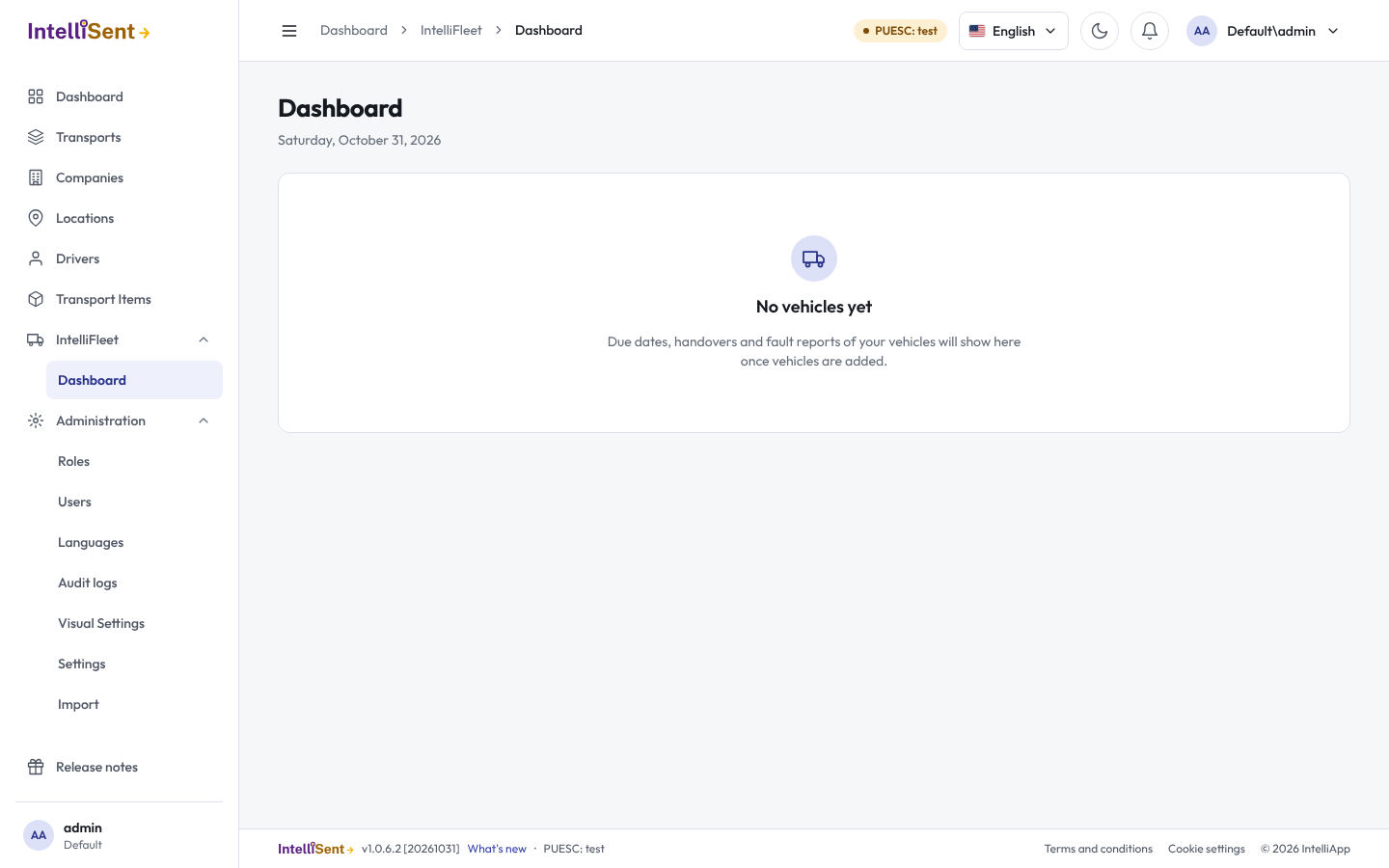
IntelliFleet has its own group in the side menu, IntelliFleet, with its Dashboard. The dashboard is where due dates, handovers and fault reports of your vehicles will show. Until vehicles are added it says No vehicles yet.
If the group is missing, check both steps above: the edition must include IntelliFleet and your role must have its permission. Opening the IntelliFleet address without them takes you back to IntelliSent's home page.
Languages
IntelliFleet speaks English, Polish and German. It follows the language you pick in IntelliSent's top bar.