
Documentation / Getting started and setup
Settings and dictionaries
IntelliFleet › Settings holds your company's details, the currency and reminder windows, the statutory per-km rates and the lists that Fleet's forms pick from (vehicle types, fuel types, VAT rates and so on). Only people whose role has the Settings and dictionaries permission see it.
Who can see and change what
- To open Settings, a role needs IntelliFleet › Settings and dictionaries (Administration › Roles › Permissions).
- Everyone with IntelliFleet still sees the dictionaries' entries in the forms they fill in, for example the vehicle types when adding a vehicle. Only the settings permission lets someone change them.
Company profile
Your company as it appears on Fleet documents, such as the VAT mileage log and handover protocols. Fill in at least the company name; the tax ID, address and bank details are printed where documents need them.
- Tax ID (NIP): for a Polish company (country PL) enter the ten-digit NIP. You can type it with dashes, spaces or a leading PL; it is saved as ten digits. A NIP with a wrong check digit is refused, so a typo cannot end up on a document. For a company in another country, enter its VAT ID as it is.
- Mailing address: fill it in only if letters go somewhere other than the registered address.
Currency and reminders
- Currency: the currency amounts are entered in, as a three-letter code such as PLN or EUR. A new company starts with PLN.
- Remind days before: how many days before an inspection, insurance expiry or another date it shows as due. Starts at 30.
- Remind kilometres before: how many kilometres before a service due at an odometer reading it shows as due. Starts at 1,000.
- Reminders by type: under the two fields above, each type of Due item (insurance, inspections and vehicle deadlines, documents and equipment, tyres, repairs, Employee deadlines and licences, fuel cards, financing, calendar, low stock) has a tick box (ticked is On) and its own Days before and Km before. An empty field uses the company value above (shown in grey); a type switched off is left out of Reminders, the dashboard, e-mails and push, but stays in the Due dates and documents report. Low stock has only that box. See Reminders.
- SMS to drivers without the app: off until you switch it on. A driver with no phone with the app then gets an SMS in place of a push. See SMS.
Below them are the statutory per-km rates for private vehicles used for business, which the mileage log and reports use. They come from the law (for Poland, the rates in force from 17 January 2023) and cannot be edited here.
Dictionaries
Each dictionary is a list of entries with a search box. Add opens a form at the side; click Edit on a row to change it.
| Dictionary | What it is for |
|---|---|
| Vehicle types | Passenger car, van, trailer and so on. The rate group decides which statutory per-km rate a vehicle of this type uses. |
| Expense types | Kinds of costs, such as parking or tolls, and whether their VAT is deductible by default. |
| Fuel types | What your vehicles run on, and whether fuel is counted in litres, kilograms or kWh. |
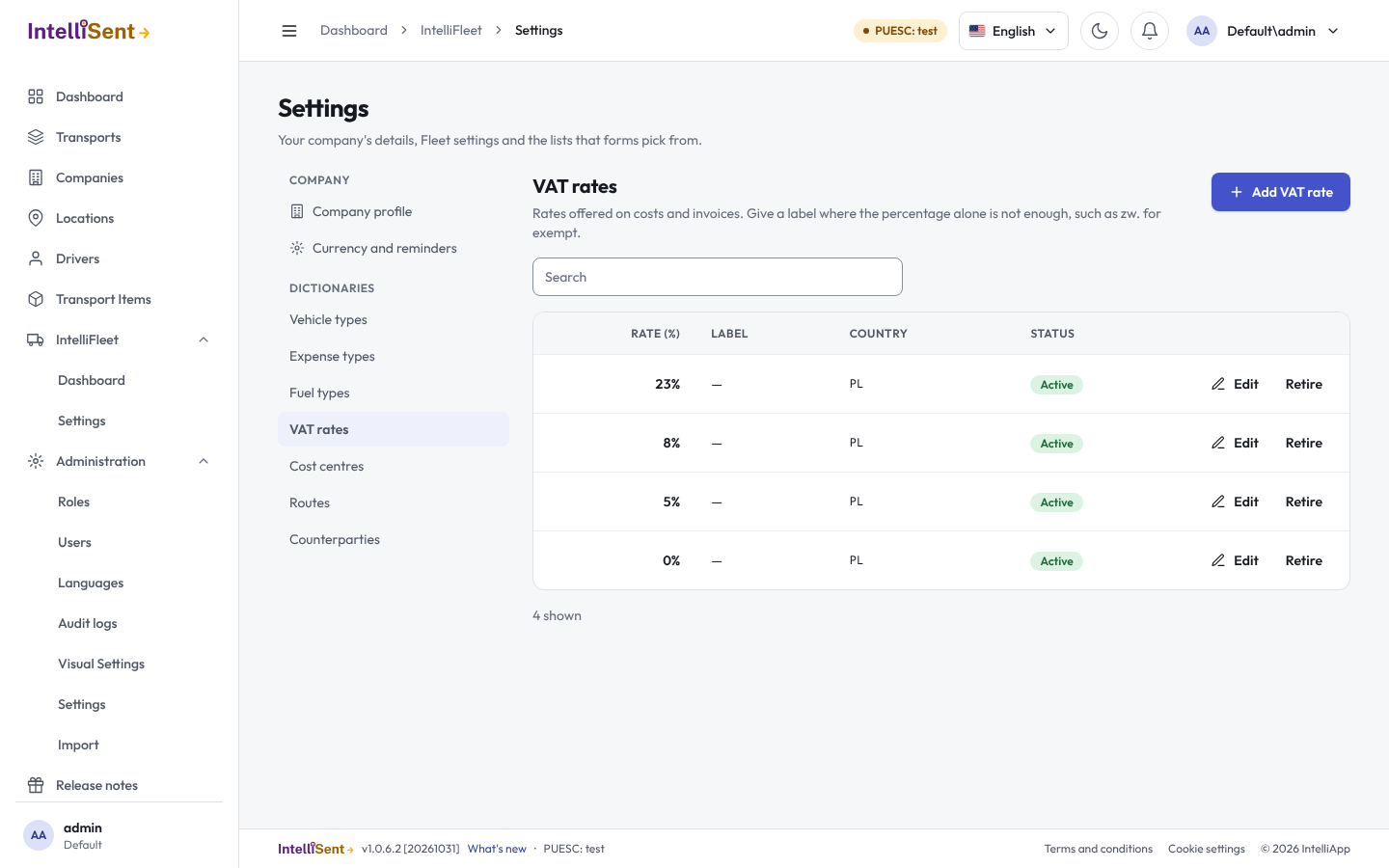
| VAT rates | The rates offered on costs and invoices. Give a label where the percentage alone is not enough, such as zw. for exempt. |
| Cost centres | Where costs are booked in your accounts, with an optional code. |
| Routes | Trips your drivers make often, with their distance. |
| Counterparties | Workshops, tyre shops, insurers, fuel stations, assistance lines and customers. Tick Show to drivers in the app for addresses and phone numbers drivers need on the road. |
Names are unique within a dictionary, whatever their capitals: you cannot add a second "Van".
Retiring an entry
Entries are never deleted, so the costs, vehicles and documents that use them keep them. Instead, Retire an entry you no longer want offered in forms. Retired entries are hidden; tick Show retired to see them and Bring back to offer one again. A retired name still counts as taken, so bring it back rather than adding it again.
What a new company starts with
The first time anyone opens IntelliFleet's dictionaries, it fills them in, in that person's language:
- the four built-in vehicle types (passenger car, truck, motorcycle, moped), which the statutory rates name. You can rename them, but not retire them or change their rate group;
- the Polish VAT rates 23%, 8%, 5% and 0%;
- the common fuel types: petrol, diesel, LPG, CNG, electricity and AdBlue;
- the statutory per-km rates.
After that the lists are yours: renamed or retired entries are never put back.
Custom fields
Your own fields on vehicles, employees and other records are defined under Settings › Custom fields; see Custom fields.
AI assistant
Settings › AI assistant controls the assistant in the Help panel (see Ask the assistant).
- Help answers are always on: the assistant answers how-to questions from this guide. Only the question is sent to Google Gemini, never data about your company, vehicles or people.
- AI assistant data answers let the assistant also answer questions about your fleet, such as "Which cars have insurance due this month?". They are off until an administrator ticks Answer questions about our vehicles, and need a plan that includes them; otherwise the switch says your plan doesn't include them.
What is sent to Google Gemini for a data answer:
- the question and the last few turns of the conversation;
- the records the answer needs, with only these fields: registration, VIN, make and model, Branch and fleet, odometer, Due items and their dates, costs and fuel, repairs and fault reports, and the Employee's name;
- only what the person asking can see: their Branches and permissions, as on the screens.
What is never sent: PESEL, driving licence numbers, addresses, phone numbers and e-mails; photos, signatures and files; free-text descriptions and custom fields.
Questions and answers are kept for 30 days so we can fix wrong answers, then deleted. Google processes these requests for IntelliApp as a subprocessor, under IntelliApp's data processing terms. Each data answer counts towards your plan's AI allowance on the Usage and limits page, like AI invoice matching.
Export all data
Settings › Export all data makes one ZIP with all of your company's IntelliFleet data, for a data protection (GDPR) request or for moving to another system. Only a role with IntelliFleet › Settings and dictionaries › Export all data sees it; give it to administrators only, since the export covers every Branch, whatever the person's Branch access.
Click Export all data. The export is prepared in the background; you get an e-mail and a notification with a download link when it is ready, and Download ZIP appears on the page. The ZIP holds:
- a CSV file per table, with every column and the record ids, in UTF-8 (deleted records too, marked in the IsDeleted column). Secrets are not in it: the fuel card PINs, the KSeF credentials and the driver app's push tokens are left out, and the manifest lists these columns under excludedColumns;
custom-field-values.csv: each custom field value with its record and the field's name;- the files (attachments, photos, protocol PDFs), each in its record's folder: the record type, its id, the file's id and its name, for example
files/Vehicle/12/345/registration.pdf; manifest.json: the row count of each table and the size and SHA-256 of each file, so you can check nothing is missing or changed. A file the storage no longer has is listed under missingFiles.
The link and the ZIP are kept for 7 days, then the ZIP is deleted; until then it counts towards your storage on the Usage and limits page. One export runs at a time: wait for it, or for a day, before starting another.