
Documentation / Vehicles, people and documents
Drop files on a vehicle or an Employee
Drag files from your computer onto a vehicle's or an Employee's card, and IntelliFleet puts each one where it belongs: a policy becomes the vehicle's insurance, an invoice goes to the invoice inbox, photos go to a damage report. You check every file before anything is saved.
Drop the files
- Open the card of a vehicle (Vehicles, then the vehicle) or of an Employee (Employees, then the person).
- Drag one or more files from your computer over the page. The page shows Drop N files to add them to WA 7421K.
- Let go of the files. A panel opens with one row per file; the photos of one drop share a row.
You can also click Add files at the top of the card and choose the files, without dragging. Dropping files onto a form that is open (for example a document's own file area) adds them to that form instead.
Check where each file goes
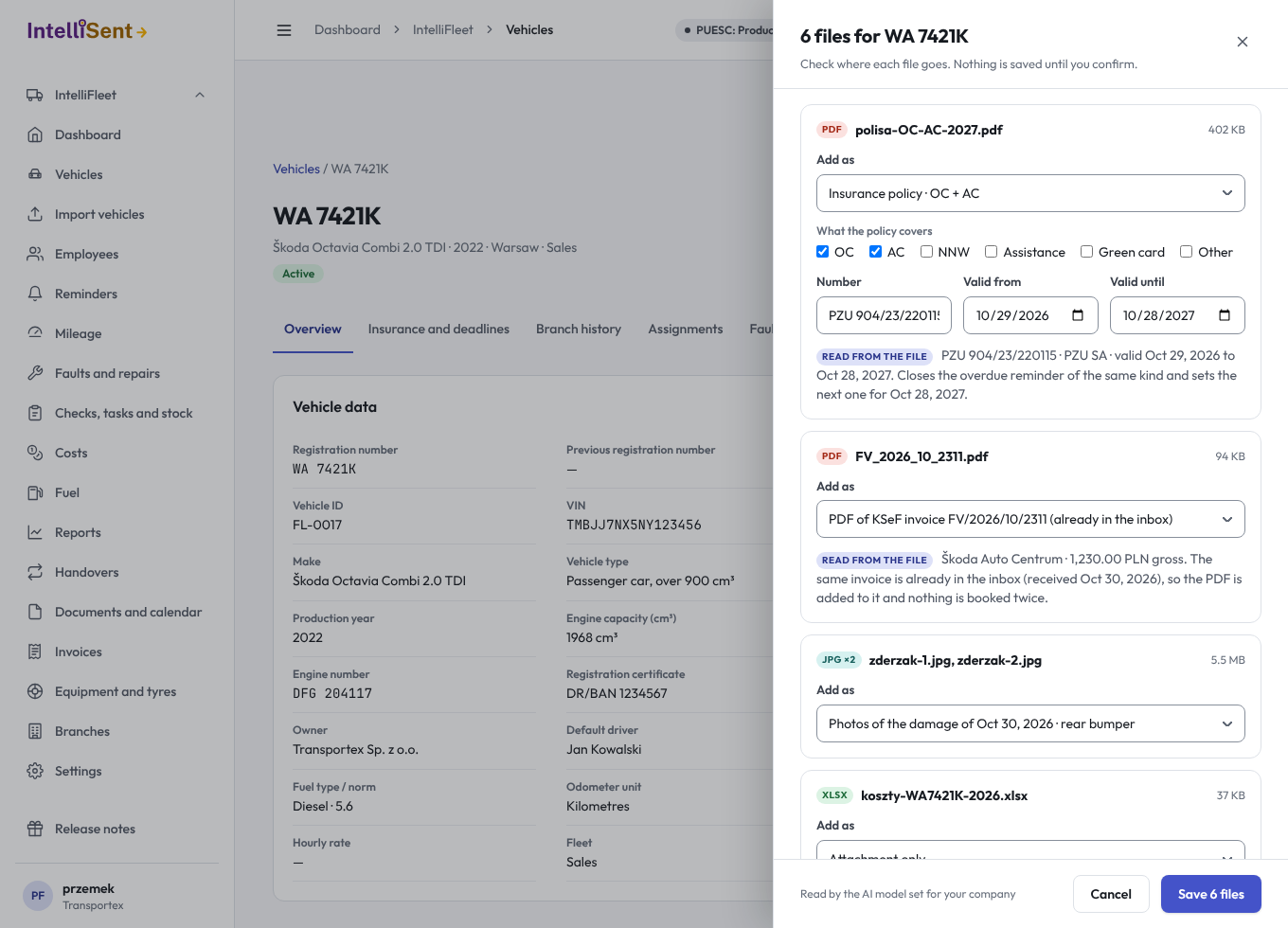
Each row shows the file, a suggestion under Add as, and what was read from the file. Change the suggestion if it is wrong:
| The file | Suggested | What saving does |
|---|---|---|
| An insurance policy (PDF or photo), on a vehicle | Insurance policy · OC + AC | Adds one policy per cover with the number and dates read from the file, each with the file. A new policy of the same cover that ends later closes the overdue reminder and sets the next one. |
| A certificate, licence or other document | New document · its type | Adds a document of the vehicle or the Employee with its number and expiry date; the expiry becomes a reminder. |
| An invoice that is already in the inbox (from KSeF or uploaded) | PDF of KSeF invoice … | Adds the PDF to that invoice. Nothing is booked a second time. |
| A new invoice, on a vehicle | New invoice in the inbox for WA 7421K | Puts the invoice in the inbox with this vehicle suggested. You confirm it in Invoices as usual. |
| Photos, on a vehicle | Photos of the damage of … or New damage report | Adds the photos to the vehicle's open damage, or reports a new damage with them. |
| Anything else | Attachment only, or New document · type: choose | Keeps the file on the card's Files tab, or makes a document whose type you pick. |
Under the suggestion you can correct the type, number and dates of a document or policy, the covers of a policy, the header of a new invoice and the description of a new damage.
Click Save N files. Each row shows Saved when its file is stored. If a file cannot be saved, its row says why and stays; fix it and click Save again, and only what is left is saved. Cancel closes the panel and saves nothing that was not saved yet.
Reading files with AI
PDFs and photos up to 10 MB are read by the AI model set for your company, which tells what the file is and reads its number, issuer and dates. Each read counts as one AI call of your plan, like a registration certificate read. A spreadsheet or any other file is sorted by its name only and is not sent.
The model only suggests. When it cannot tell what a file is, when AI is off for your company, or when the AI allowance is used up, the row says so and you choose where the file goes.
Who can do what
The Add files button shows when you may file something on the card. Each choice under Add as is offered only when you hold its permission: insurance needs editing vehicles, documents need editing documents, invoices need confirming invoices, damage needs editing maintenance, and a plain attachment needs editing the vehicle or the Employee. You can drop files only on vehicles and Employees of your branches.
A spreadsheet (.xlsx or .csv) dropped on its own opens in the import at the columns step (see Import from Excel or CSV). Dropped together with other files it is kept as an attachment. Filling in this vehicle for every row of the file comes later.
Drop documents anywhere
You don't have to open a card first. Drag documents onto any other Fleet page (the dashboard, a list, a report) and the page shows Drop documents and AI will sort them. Let go, and a panel opens with one row per document.
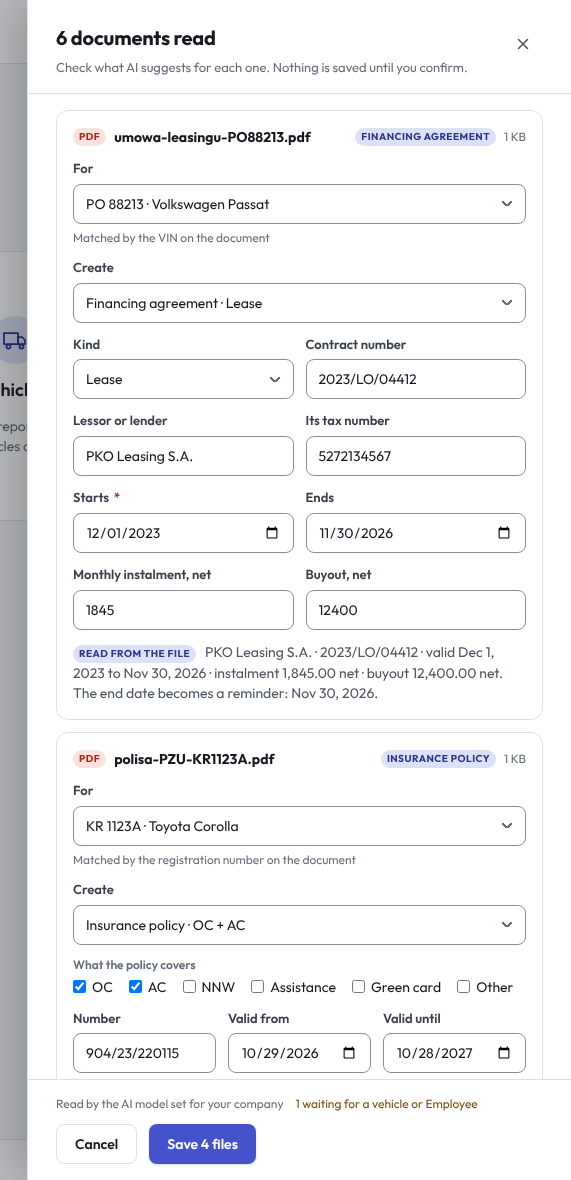
The AI model reads each document, says what it is, and finds what it is about among the vehicles and Employees you can see: a vehicle by the VIN or registration number printed on it, an Employee by first and last name. For shows what it found and how; change it if it is wrong, or pick one when nothing was found. A row without a vehicle or Employee waits, and the others are saved without it.
| The document | Suggested | What saving does |
|---|---|---|
| A lease, long-term rental or loan agreement | Financing agreement · Lease | Adds the vehicle's financing agreement with the lessor and its tax number, contract number, start and end, monthly instalment and buyout. The end becomes a reminder. The file is kept on the vehicle. |
| A fuel receipt | Fuel entry with its cost | Adds a fuel entry with the date, litres, odometer and amount read, and its cost. The fuel type is the one printed on the receipt, else the vehicle's fuel. The file is kept on the vehicle. |
| A registration certificate of a car not in your fleet | New vehicle · opens the form filled in | Open the vehicle form goes to Vehicles with a new vehicle's form filled in from the certificate. You check it and save it there. |
| A fine | New document · … on the driver named on it | Adds a document of that Employee. |
| A policy, an invoice or any other document | As on a card (see the table above) | The same as dropping it on the card of the vehicle or Employee found. |
Under the suggestion you can correct what was read: the agreement's kind, numbers, dates and amounts, or the receipt's date, litres, amount, VAT and odometer.
A financing agreement needs editing costs, a fuel entry editing fuel, and a new vehicle editing vehicles. A lease or a fuel receipt dropped on a vehicle's card is suggested the same way. Spreadsheets dropped on their own still open the import; with other documents they stay attachments of the record you pick.